
How to Make Bigfoot AI Videos That Look Cinematic and Realistic
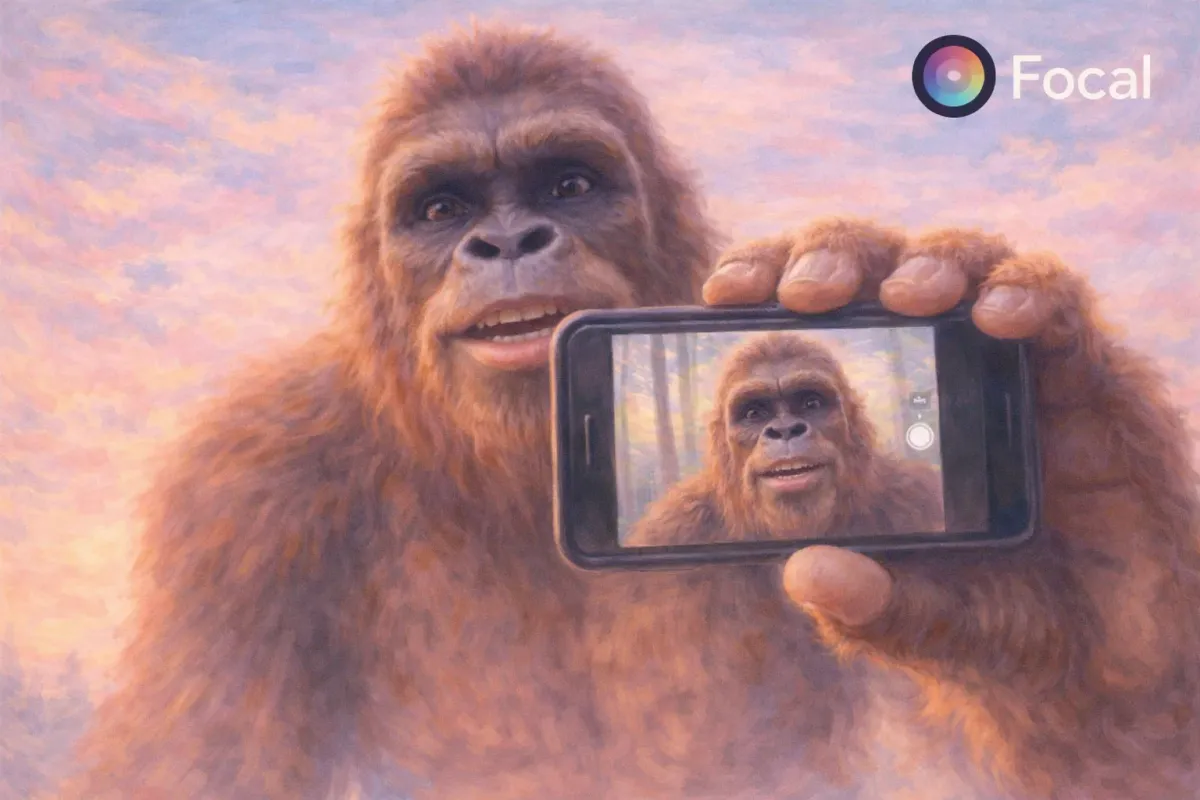
Bigfoot AI videos are becoming one of the most recognizable character driven formats across short form platforms. The appeal comes from combining a mythical creature with grounded human behavior, natural dialogue, and cinematic framing. With modern text to video models, creators can now generate highly detailed Bigfoot scenes that include body language, environment interaction, camera movement, and spoken dialogue.
This guide walks through how to make Bigfoot AI videos step by step, how to structure prompts correctly, and how to use Focal to select the right AI model for the job.
Recommended Video Format and Output Specifications
Before generating your first clip, it helps to lock in the technical format so your AI output is consistent and usable across platforms. These settings work well for cinematic Bigfoot videos and short form storytelling.
- Format MP4
- Length 8 seconds
- File size approximately 5MB
- Resolution 1080 by 720 pixels
- Frame rate 24 frames per second
- Audio 48 kHz two channel stereo
You can include these specifications directly in your AI prompt or select them in advanced generation settings, depending on the model you use. Adding these details early helps reduce motion artifacts and improves realism.
This is also a good place in your blog to link out to a reference Bigfoot video so readers can visually understand the tone and pacing you are aiming for.
Tools You Need to Create Bigfoot AI Videos
At minimum, you need an AI video generator capable of cinematic motion and audio, plus a way to write detailed prompts.
Focal is especially useful here because it lets you choose between multiple video generation models inside a single workflow. Instead of being locked into one system, you can pick the model that best fits the style you want.
Inside Focal, creators can choose models such as:
- Google Veo
- Kling
- Hailuo
- Runway
- Luma
For Bigfoot videos specifically, Google Veo is the recommended model. It handles environmental realism, natural movement, lighting, and dialogue particularly well. It also responds strongly to long descriptive prompts, which is essential for this style of content.
Step by Step How to Make a Bigfoot AI Video
Plan the Scene Before Writing the Prompt
Start by visualizing the entire scene as if it were a short film. Think about where Bigfoot is, what just happened before the clip begins, and what emotion he is expressing. Even though the final video is short, the AI performs better when the backstory is implied.
Ask yourself:
- Is Bigfoot tired, surprised, annoyed, or calm
- Is the setting deep forest, ravine, campsite, or mountain trail
- Is the camera observing him or interacting with him
Once this is clear, you can move on to prompt writing.
How to Write Prompts for Bigfoot AI Videos
This is the most important part of the process. Below are fully written paragraph style prompts, similar in depth and structure to the example you shared. These are designed specifically for models like Google Veo inside Focal.
Sample Prompt 1 Cinematic Awakening Scene
Generate a cinematic video of a large Bigfoot wearing a backwards red baseball cap, slowly standing up from a pile of broken sticks and dry forest leaves at the base of a wooded ravine. His fur is dark brown and slightly matted, with small burn marks and singed patches visible on his arms and shoulders. Twigs and debris cling to his fur as he groans quietly and brushes himself off with heavy, deliberate movements. He looks around with tired eyes, slightly hunched, then speaks in a weary Midwestern American accent saying, “Yeah, that was a bit higher than I was expecting.” The environment is a dense forest with tall trees, filtered sunlight passing softly through the canopy, and dust particles floating in the air. The camera has subtle handheld movement, realistic human motion, natural weight shifts, and gentle camera shake. Lighting is soft and cinematic with warm highlights and cool shadows. Audio includes forest ambience, distant birds, rustling leaves, and clear dialogue. Output as an 8 second MP4 video at 1080 by 720 resolution, 24 frames per second, stereo audio at 48 kHz.
Sample Prompt 2 Casual Bigfoot Vlog Style
Create a realistic AI video of Bigfoot holding a camera at arm’s length as if recording a casual vlog while walking slowly through a forest trail. He is tall and muscular with thick dark fur, wearing a worn backwards baseball cap. His breathing is slightly heavy and his movements feel grounded and human. He occasionally glances at the camera, then back to the trail, speaking in a relaxed conversational tone as if talking to an audience. The forest around him is dense with pine trees, fallen leaves, and soft morning light. The camera movement is imperfect and handheld, with natural sway from walking. Lighting is soft and diffused, with realistic shadows on his face and body. Include subtle environmental sounds like footsteps on leaves and distant birds. Generate a cinematic yet casual feel with realistic motion and pacing. Output as an 8 second MP4 video at 24 frames per second, 1080 by 720 resolution, stereo audio.
Sample Prompt 3 Dramatic Environmental Scene
Generate a cinematic scene of Bigfoot emerging from a foggy forest clearing just after sunrise. He pauses, stretches his shoulders, and exhales deeply as mist moves slowly around his legs. His fur shows signs of wear, dirt, and small scratches, suggesting long travel. The camera starts low near the ground and slowly tilts upward to reveal his full size, creating a sense of scale. Lighting is atmospheric with golden sunlight cutting through fog and trees. Movement is slow, deliberate, and realistic with subtle shifts in balance. The scene feels quiet and reflective. Include ambient forest audio and light wind. Output as an 8 second cinematic MP4 video at 1080 by 720 resolution, 24 fps, stereo audio at 48 kHz.
Using Focal to Choose the Right AI Model
What makes Focal especially powerful is the ability to select the video generation model based on the creative goal of the scene.
For Bigfoot AI videos:
- Choose Google Veo for cinematic realism, environmental detail, and dialogue
- Use Kling or Hailuo if you want stylized or experimental motion
- Use Runway or Luma for faster iterations or abstract visuals
For grounded character storytelling, Google Veo inside Focal consistently produces the most believable results.
This section is a strong internal linking opportunity to Focal’s AI video generator pages and any blog posts explaining model differences.
Editing and Publishing Your Bigfoot AI Video
Once your clip is generated, you can publish it directly or lightly edit it.
Best practices include:
- Adding captions for dialogue
- Keeping total length under 30 seconds if stitching clips
- Posting vertically for TikTok and Reels
- Using simple, curiosity driven captions
Bigfoot videos perform best when they feel like found footage or casual moments rather than overproduced scenes.
Bring iconic characters to life with cinematic AI motion, lighting, and storytelling control.
Frequently Asked Questions About Bigfoot AI Videos
What is the best AI model for Bigfoot videos
Google Veo is currently the best choice for realistic Bigfoot scenes due to its motion quality, lighting, and audio handling.
How detailed should my Bigfoot AI prompt be
The more descriptive and specific your prompt is, the better the result. Paragraph style prompts perform significantly better than short commands.
Can Bigfoot AI videos include dialogue
Yes. Many modern models support spoken dialogue when tone, accent, and pacing are clearly described in the prompt.
How long should Bigfoot AI videos be
Eight to fifteen seconds is ideal for single clips. Longer stories work best when stitched together.
Do Bigfoot AI videos work on all platforms
Yes. They perform especially well on TikTok, Instagram Reels, and YouTube Shorts.
If you want full creative control over Bigfoot AI videos, from cinematic realism to casual character vlogs, Focal gives you the flexibility to choose the right model for every idea. Start experimenting with detailed prompts, select Google Veo inside Focal, and turn your Bigfoot concepts into shareable video content.