How to Make AI Fruits Reacting to their Own Taste (Step-by-Step Tutorial)
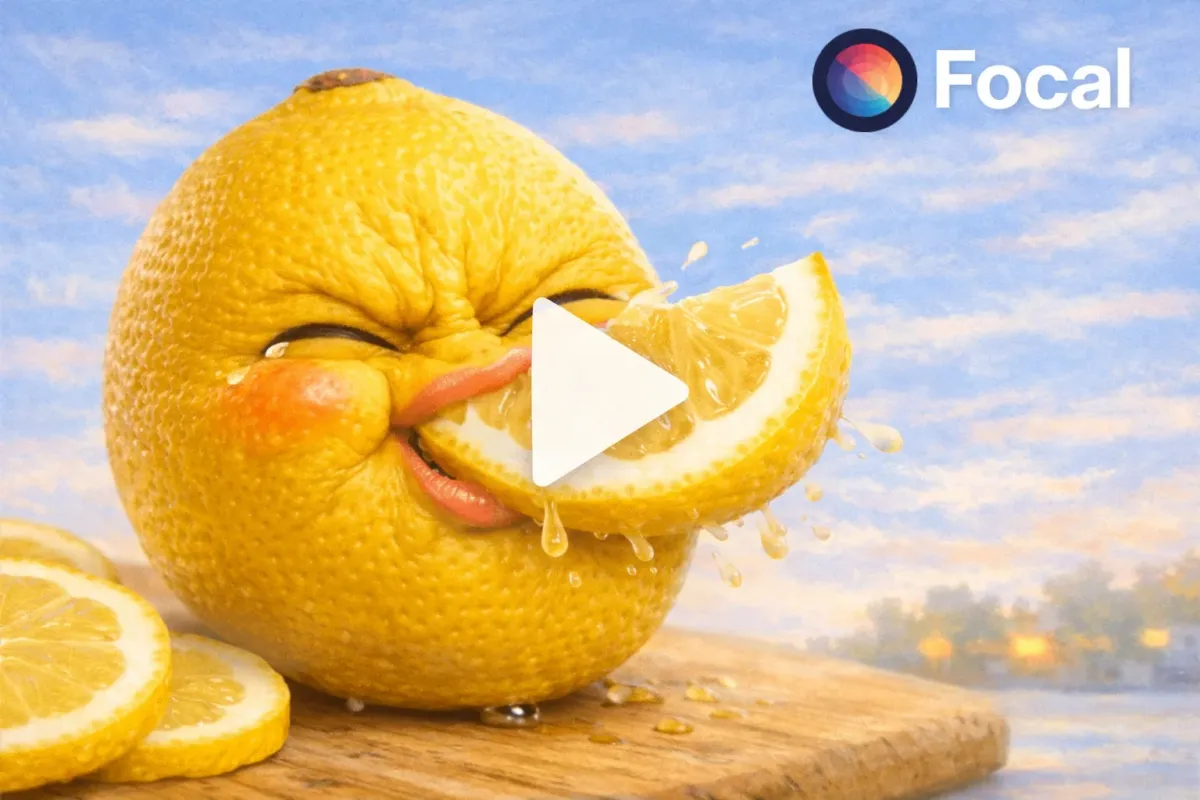
AI video fruits reacting to themselves is one of the fastest growing creative video trends right now. These videos show realistic or animated fruits watching clips of themselves, reacting with expressions, voices, or exaggerated emotions. The format blends AI video generation, character animation, and reaction style storytelling that performs well on TikTok, Shorts, and Reels.
This tutorial covers how to create fruits reacting to themselves using AI video tools, how to structure prompts, and how to turn a single idea into repeatable viral content. You will also see how creators use reaction loops, talking fruit AI, and self reacting video formats to boost watch time and engagement.
Tools You Need to Create AI Fruit Reaction Videos
To create fruits reacting to themselves, you need an AI video platform that can handle character generation, voice, reactions, and multiple clips in a single workflow.
This is where Focal comes in. Focal works as a creative command center that lets you generate AI video scenes, apply prompts, choose models, and stitch everything together in one timeline.
With Focal, you can
- Generate realistic or stylized fruit characters
- Create talking fruit reactions with facial expressions
- Use multiple AI video models in one project
- Control video length, framing, and pacing
- Export vertical videos optimized for social platforms
What an AI Fruit Reaction Video Looks Like
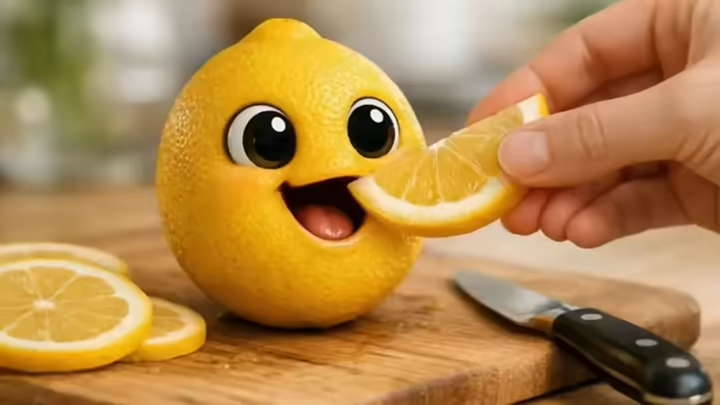
- A realistic fruit sits on a clean table or kitchen background
- A hand feeds the fruit a slice of the same fruit
- The fruit tastes it with audible ASMR crunch or juice sounds
- The fruit reacts with playful, self-aware humor
This format works because it combines reaction video psychology with AI novelty. Viewers stay longer to see how the fruit responds to itself.
Step 1. Plan the Fruit Character and Reaction Concept
Everything starts with planning and prompting inside Focal. Decide which fruit you want to use and how it should react.
Key planning questions
- Which fruit is the character. Apple, banana, orange, strawberry
- Is the style realistic, 3D, or cartoon
- Is the reaction funny, shocked, sarcastic, or wholesome
- Is the fruit reacting to a screen, a phone, or a floating video
Example prompt structure you can adapt inside Focal.
Create a vertical AI video of a realistic strawberry with expressive eyes and a mouth. The strawberry is standing on a clean kitchen table. In front of it is a floating screen showing a video of the same strawberry talking and moving. The strawberry reacts with surprise and laughter. Facial expressions are clear and exaggerated but still natural. Lighting is soft and realistic. The reaction feels playful and self aware.
Step 2. Choose Models and Adjust Video Options in Focal
Once your prompt is ready, you move to model selection and video options inside Focal. This is where the output quality gets refined.
Important options to review
- Video aspect ratio set to 9 by 16 for TikTok and Shorts
- Duration set between 8 and 12 seconds for loop friendly playback
- Motion intensity medium to keep reactions readable
- Facial expression clarity enabled
- Audio or voice enabled if the fruit speaks
Focal allows you to test different AI video models without rebuilding the entire project. This is useful when experimenting with realism versus stylized fruit characters.
Step 3. Generate the Reaction Video and Make Minor Edits
After selecting options, generate the video inside Focal. Review the output and look for small improvements.
Quick edits to consider
- Tightening the reaction timing
- Making eye movement more expressive
- Adjusting camera framing to keep focus on the fruit
- Increasing reaction clarity in the first three seconds
The goal is instant clarity. Viewers should immediately understand that the fruit is reacting to itself.
Step 4. Save, Export and Share the Video
When the video feels right, export directly from Focal.
Best practices for sharing
- Export in high quality vertical format
- Upload natively to TikTok, Reels, and Shorts
- Use captions that explain the joke quickly
- Test multiple fruits using the same prompt structure
By changing only the fruit and reaction tone, you can turn one concept into a full content series.
Create Your Own Viral AI Fruit Reaction Videos Today
If you want to create AI video fruits reacting to themselves without juggling multiple tools, Focal gives you everything in one place. From prompting to model selection to export, the entire workflow stays simple and repeatable.
This is one of the easiest ways to experiment with AI reaction content, talking fruit characters, and viral short form video formats in 2026.
Start creating AI fruit reaction videos that stop the scroll and keep viewers watching.
FAQs About AI Video Fruits Reacting to Themselves
How do you make fruits react to themselves using AI
You create a fruit character and prompt it to respond to a video of itself using an AI video platform that supports character reactions and scene control.
What AI tools are best for talking fruit reaction videos
Platforms that combine AI video generation, character animation, and editing in one workflow work best for this format.
Can AI fruit reaction videos go viral on TikTok
Yes. Short vertical videos with clear reactions and loop friendly timing perform especially well on TikTok and Shorts.
Do you need voice or sound for fruit reaction videos
Voice helps but it is not required. Facial expressions and visual reactions alone can still drive engagement.
How long should an AI fruit reaction video be
Most creators aim for 8 to 12 seconds to maximize completion rate and replay value.
📧 Got questions? Email us at [email protected] or click the Support button in the top right corner of the app. You must be logged in. We actually respond.