
How to Create AI Pet Slime Videos That Look Real and Go Viral
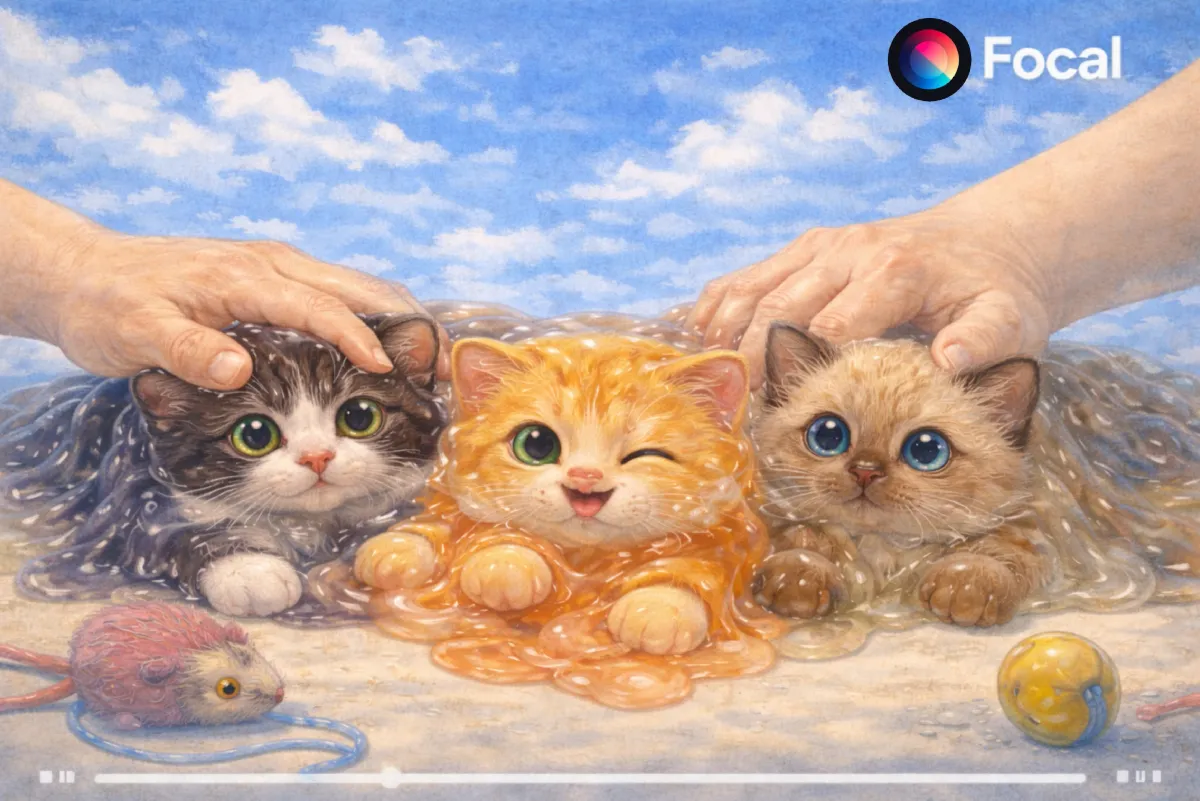
AI pet slime videos are one of the fastest growing formats across short video platforms. Creators are turning realistic dogs, cats, and rabbits into soft gooey slime using AI video generation. The effect feels surprising, oddly satisfying, and perfect for ASMR style content. In this guide you will learn how to create AI pet slime videos step by step using modern AI video tools. This tutorial focuses on realistic pet motion, slime transformation, and smooth tactile animation that performs well on TikTok, Reels, and Shorts.
You will also see how creators use AI pet slime prompts, reference images, and video settings to consistently generate high quality slime reveal videos that viewers rewatch.
Tools You Need for AI Pet Slime Videos
To create AI pet slime videos you need an AI video platform that supports reference images, motion control, and texture transformation. This is where Focal fits naturally into the workflow.
Focal acts as a creative command center that connects multiple AI video models inside one timeline editor. You can upload pet images, control video length, set frame rate, and generate multiple clips in one session.
Key capabilities you will use
- Reference image based video generation
- Realistic animal motion and lighting
- Smooth texture morphing from fur to slime
- Short form video settings optimized for social platforms
- Multi clip generation in one prompt
These features make it easier to produce AI pet slime videos without switching tools.
Sample Output What an AI Pet Slime Video Looks Like

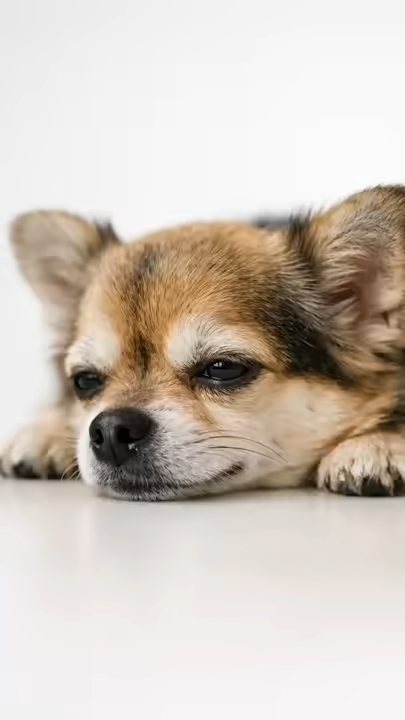
A typical AI pet slime video starts as a realistic animal sitting calmly. A human hand enters the frame and gently presses the pet. At the moment of contact the fur texture softens and melts into glossy slime. The transformation looks smooth and tactile. The motion remains slow and satisfying with subtle ASMR cues.
Most viral clips follow these patterns
- Realistic lighting and shallow depth of field
- Slow hand movement and gentle pressure
- Clean background with neutral colors
- Eight to ten second duration per clip
- One pet per clip for clarity
This format works well for dogs, cats, rabbits, and other familiar pets.
Step 1. Plan and Prompt Your AI Pet Slime Video in Focal
Start by deciding which pets you want to generate. Most creators produce three clips at once to test performance.
Popular pet choices
- Dog pet slime video
- Cat pet slime video
- Rabbit pet slime video
Upload one reference image per pet. Use clear well lit photos with visible fur texture. Then write one unified prompt that describes all clips together.
Example prompt
Create three ultra realistic AI video clips. Each clip is eight to ten seconds long. Clip one shows a realistic dog sitting calmly on a clean surface. Clip two shows a realistic cat in the same setting. Clip three shows a realistic rabbit. In each clip a realistic human hand slowly enters the frame and gently presses the animal. When touched the animal smoothly transforms into glossy stretchy slime while keeping the same shape. The slime looks soft translucent and satisfying. Motion is slow and continuous with ASMR style realism. Lighting is soft and natural. Camera remains steady and close.
Step 2. Choose Video Options and Adjust Settings
Inside Focal you can adjust options before generation. These settings help maintain realism and smooth texture transitions.
Recommended settings
- Aspect ratio vertical nine by sixteen
- Frame rate twenty four to thirty fps
- Motion strength low to medium
- Texture detail high
- Transformation smoothness high
- Audio muted or subtle ASMR style
These choices improve consistency and reduce visual artifacts in slime effects.
Step 3. Generate and Make Minor Edits
Once generated review each clip carefully. Look for clean hand motion and smooth slime conversion. Minor imperfections can be fixed by regenerating individual clips or trimming frames in the timeline.
Helpful edit tips
- Trim the first second if motion feels abrupt
- Crop slightly to emphasize the hand interaction
- Export clips individually for testing
This stage helps maximize watch time and replay value.
Step 4. Save Export and Share
Export each clip in high resolution optimized for short video platforms. Upload them separately so you can test which pet slime video performs best.
Posting tips
- Use captions focused on pet slime ASMR
- Keep hashtags niche and specific
- Post consistently with one pet per video
Small variations often lead to big performance differences.
Why AI Pet Slime Videos Work So Well
AI pet slime videos combine realism, surprise, and tactile visuals. Viewers recognize the pet instantly and then experience an unexpected texture shift. This creates curiosity and retention which platforms reward.
The format also scales easily. You can swap pets, backgrounds, or hand movements while keeping the same structure.
Start Creating Your Own AI Pet Slime Videos Today
If you want to turn this format into a repeatable content system, use a platform that lets you control prompts, models, and video settings in one place. With Focal you can experiment faster and publish more consistently using a single AI video generator.
Create realistic AI pet slime videos in minutes using one prompt and one workflow.
FAQs About AI Pet Slime Videos
What is an AI pet slime video?
An AI pet slime video is a short AI generated clip where a realistic animal transforms into slime after being touched.
How do creators make pet slime look realistic?
They use reference images, slow motion, high texture detail, and smooth transformation prompts.
Can I make dog and cat slime videos in the same project?
Yes. You can generate multiple clips in one session by describing each pet clearly in the prompt.
What video length works best for slime content?
Eight to ten seconds per clip performs well for retention and looping.
Do AI pet slime videos work for ASMR content?
Yes. The slow motion and texture change fit perfectly with ASMR style visuals.
Is this format good for TikTok and Shorts?
Yes. Vertical AI pet slime videos perform strongly on short form platforms.
📧 Got questions? Email us at [email protected] or click the Support button in the top right corner of the app. You must be logged in. We actually respond.